Welcome to the guide. First things first: How to download, and set up the tracker?
Step 1: Download and install the tracker using link below
https://apps.microsoft.com/detail/9n6h0g3b0wfb
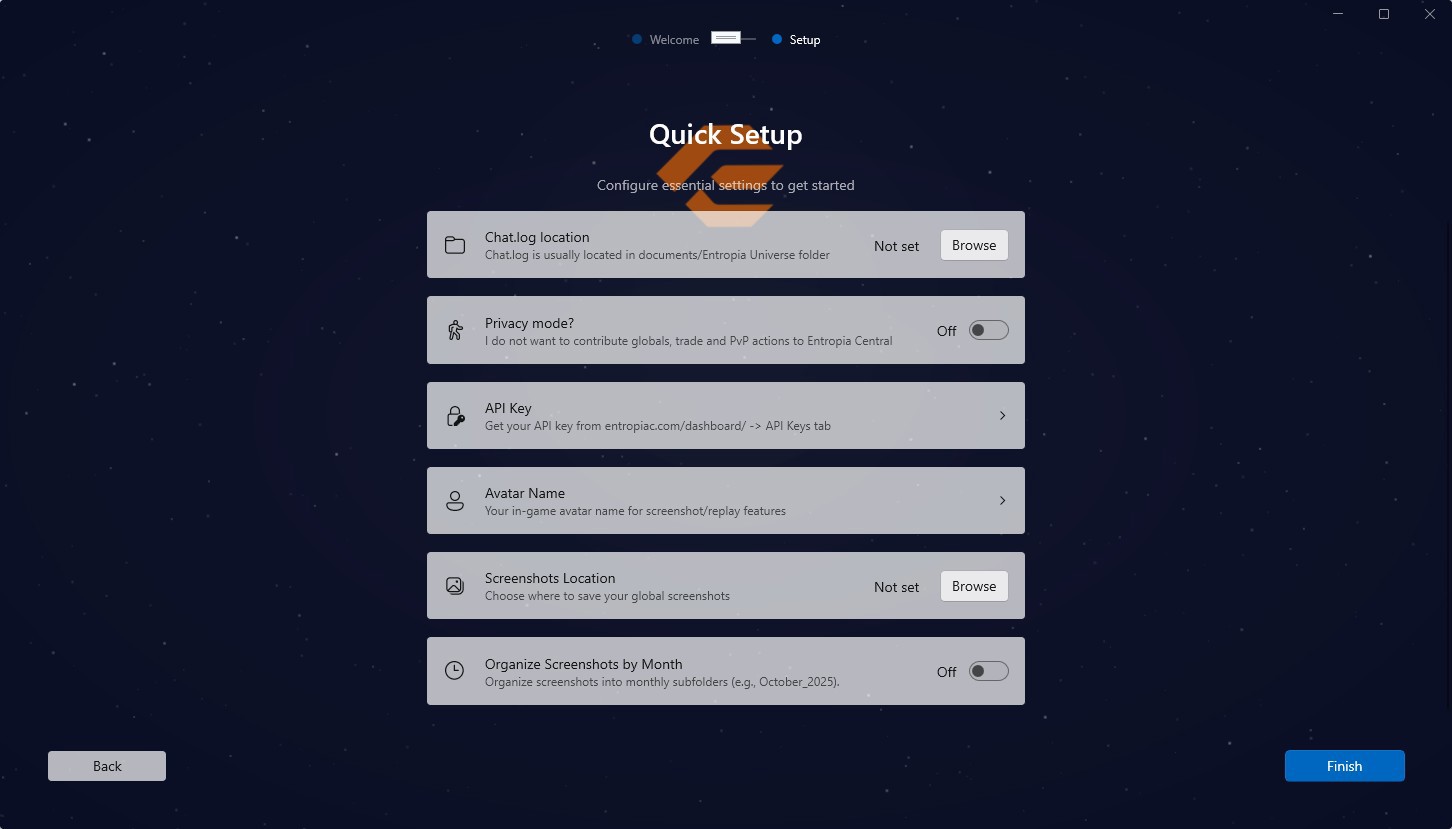
Step 2: Quick setup screen - at this point you have installed the app successfully, and managed to run it. You are seeing the welcome screen, once you go to the next step, you will be presented with the quick setup screen.
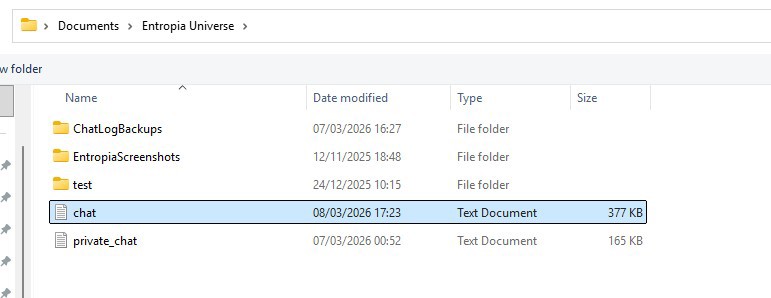
- Chat log location: chat.log file is located in "Documents/Entropia Universe" folder, select the chat file and click "Open"
- Privacy mode: I would personally prefer everyone not turning this on, here's what privacy mode means: While privacy mode is off, the tracker will filter out globals, trade messages from public trade channels, pvp kills that happens around you, and send them to the Entropia Central API. Nothing besides those three actions are recorded and sent to server. Privacy mode is implemented for users who play Entropia Universe on their work PC, or they are unable to contribute this way for other reasons, but still want to use global screenshots/video replay or loot tracking capabilities.
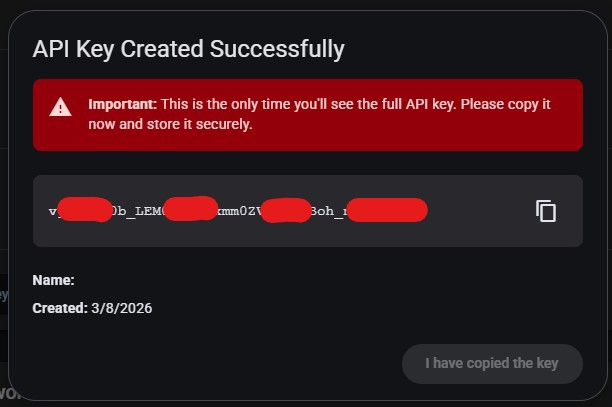
- API key: To generate an API key, you must be registered and logged in at Entropia Central website. Under Dashboard -> API Key you have a button to generate your API key, click the button, the modal will appear with your API key. Make sure to copy it and paste into the API key field immediately. You will not see this API key again after closing the modal.
- Avatar name: Obviously, enter your Entropia Universe avatar name exactly as it is, it is case sensitive! The app requires your avatar name for the screenshot/video replay features specifically, and if it's not correct, those features might not work properly.
- Screenshot custom folder/organization: The place where globals/hofs screenshots are going to be saved at. If nothing is entered, it will be saved at "Documents/Entropia Universe/EntropiaScreenshots" folder.